> For the complete documentation index, see [llms.txt](https://docs.pushpushgo.company/llms.txt). Markdown versions of documentation pages are available by appending `.md` to page URLs; this page is available as [Markdown](https://docs.pushpushgo.company/pop-ups/create-a-pop-up.md).

# Create a pop-up

To create a pop-up, go to Pop-ups options from the main navigation bar.

<figure><img src="/files/b73JDtJLTYgHQBwNPN6Q" alt=""><figcaption></figcaption></figure>

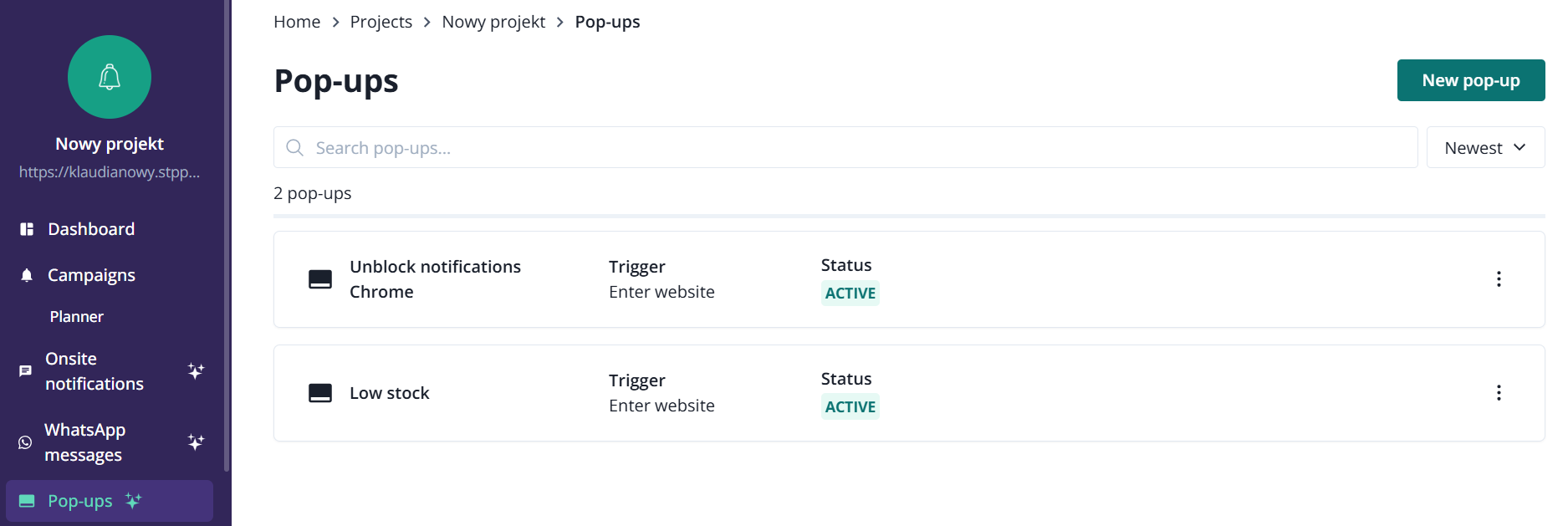
You will land on [pop-up list](/pop-up-list.md).

<figure><img src="/files/gUpLtZDLvGsnBlI3PNGH" alt=""><figcaption></figcaption></figure>

Now, click on the **New pop-up** button in the upper right corner.

<figure><img src="/files/lIXsVS9CO1vxkygtc7hp" alt=""><figcaption></figcaption></figure>

You will see eight pop-up templates that you can use.

<figure><img src="/files/R20yrBB24mGvS17PxFEO" alt=""><figcaption></figcaption></figure>

Once you select a template, you can change the image, content, and buttons, but not the general shape or other elements inside the pop-up layout. As we develop this feature, we will add the option to create a layout from scratch, giving users more flexibility.&#x20;

Available templates reflect use cases that our web push customers reported as most needed. For example, you can use pop-ups to request unblocking web push notifications in Google Chrome, or adding your website to Home Screen (iOS). Others were designed for websites with purchase processes; to boost your conversions, save abandoned baskets, and require other actions from your users, like asking for reviews.&#x20;

After selecting the pop-up template for your use case, click on it to tweak its style and content. Start from naming your pop-up.

<figure><img src="/files/YnM1EhkIw0hSP3NGjirw" alt=""><figcaption></figcaption></figure>

In this example, we can edit:

* layout (precise placement on your website)
* style (color, corner radius, border, font, close icon button, icon color and size, animation, drop shadow, overlay)
* title&#x20;
* description
* image (you can hide it on mobile devices)
* action (action type, including custom js)
* action&#x20;

Choose your audience.

<figure><img src="/files/buNOgX8zfqIvQonqRwUM" alt=""><figcaption></figcaption></figure>

Now, you can select the trigger, display, and how many times the pop-up should appear to the same user.&#x20;

<figure><img src="/files/IKnnnFRxH2DCaY8IxxRQ" alt=""><figcaption></figcaption></figure>

Once you are done, hit Create pop-up.

<figure><img src="/files/9c7cJetCrJeIVTj8km75" alt=""><figcaption></figcaption></figure>

The system will ask you to confirm whether the pop-up should be published immediately or only created.&#x20;

<figure><img src="/files/7Ol8mIMhDs9cvxUYpbe5" alt=""><figcaption></figcaption></figure>


---

# Agent Instructions
This documentation is published with GitBook. GitBook is the documentation platform designed so that both humans and AI agents can read, navigate, and reason over technical content effectively. Learn more at gitbook.com.

## Querying This Documentation
If you need additional information that is not directly available in this page, you can query the documentation dynamically by asking a question.

Perform an HTTP GET request on the current page URL with the `ask` query parameter, and the optional `goal` query parameter:

```
GET https://docs.pushpushgo.company/pop-ups/create-a-pop-up.md?ask=<question>&goal=<endgoal>
```

`ask` is the immediate question: it should be specific, self-contained, and written in natural language.
`goal` is optional and describes the broader end goal you are ultimately trying to accomplish on behalf of the user. GitBook uses it to tailor the answer towards what is most useful for that goal.

The response will contain a direct answer to the question and relevant excerpts and sources from the documentation.

Use this mechanism when the answer is not explicitly present in the current page, you need clarification or additional context, or you want to retrieve related documentation sections.