# Preview mode

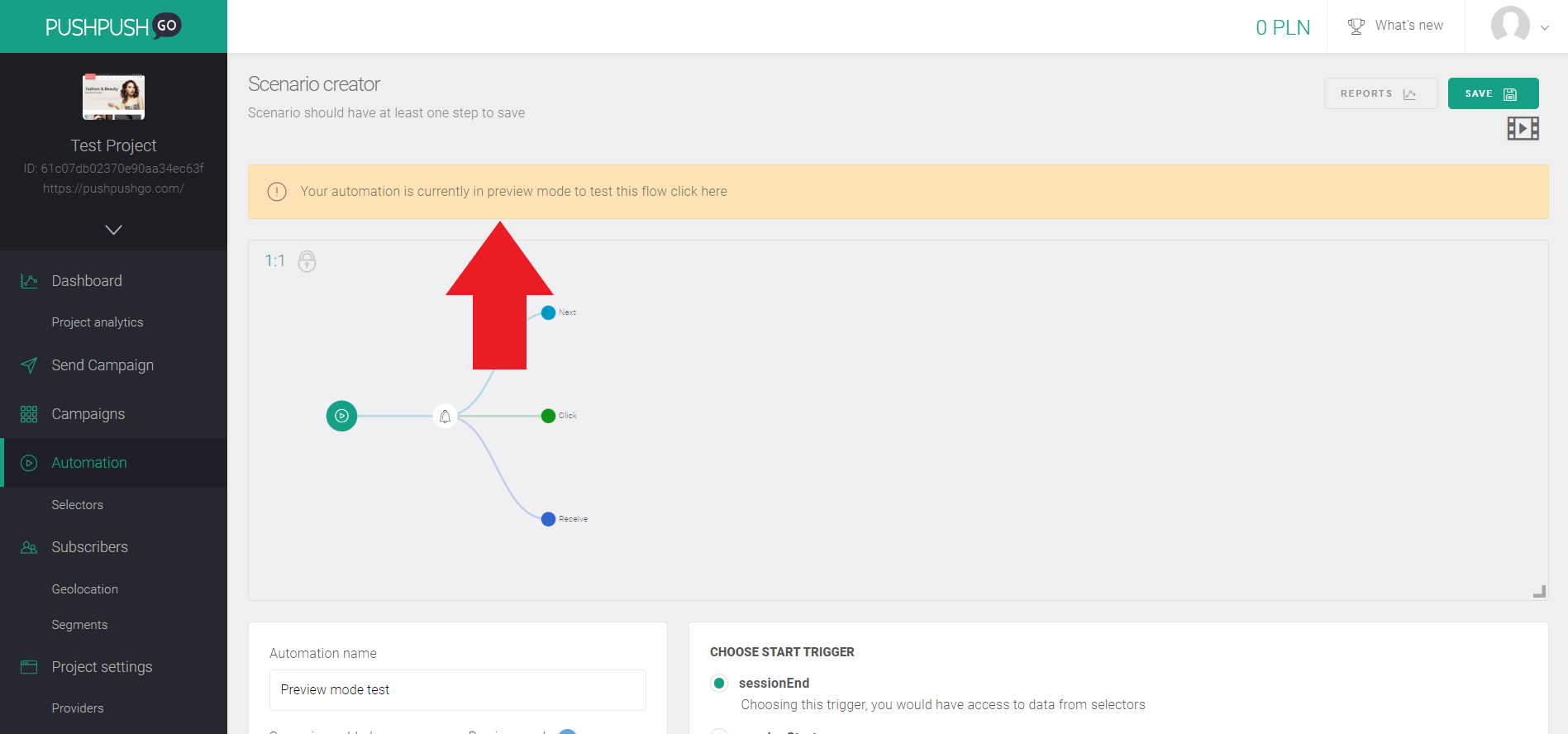
See automation scenario outcome by using preview mode before enabling it for your subscribers.

1. Go to your automation list and click 'Edit' icon on a scenario you want to test.
2. Enable automation and switch on 'Preview mode', then save changes. You should see that this scenario has 'In test mode' badge on automation list.

<div align="right"><figure><img src="https://2886427578-files.gitbook.io/~/files/v0/b/gitbook-x-prod.appspot.com/o/spaces%2F-M_L2jrbLGTIbcnHMUrm%2Fuploads%2FMrccDu0NVAIxoHEJi2P7%2FZrzut%20ekranu%202023-07-18%20172712.png?alt=media&#x26;token=4e33a0cc-3281-43ba-a200-0cdedb5b98d9" alt=""><figcaption></figcaption></figure> <figure><img src="https://2886427578-files.gitbook.io/~/files/v0/b/gitbook-x-prod.appspot.com/o/spaces%2F-M_L2jrbLGTIbcnHMUrm%2Fuploads%2FLHqpePpewGzGAikNTTqW%2FZrzut%20ekranu%202023-07-18%20165927.png?alt=media&#x26;token=0bbadc6c-a931-467d-93e5-a01282310d02" alt=""><figcaption></figcaption></figure></div>

3. Enter your website via special url by clicking on bar alert or go to your website and type following parameter to your website url:

```
?ppg_test_mode=on
```

<div><figure><img src="https://2886427578-files.gitbook.io/~/files/v0/b/gitbook-x-prod.appspot.com/o/spaces%2F-M_L2jrbLGTIbcnHMUrm%2Fuploads%2FwD8lh06y9dxu6CLKdF3z%2FZrzut%20ekranu%202023-07-18%20172725.png?alt=media&#x26;token=0d1606d3-7d2d-427e-8249-534e2199c679" alt=""><figcaption></figcaption></figure> <figure><img src="https://2886427578-files.gitbook.io/~/files/v0/b/gitbook-x-prod.appspot.com/o/spaces%2F-M_L2jrbLGTIbcnHMUrm%2Fuploads%2FalDti1JogtNmb00aCjlM%2FZrzut%20ekranu%202023-07-19%20110554.png?alt=media&#x26;token=20c1b02a-6b9c-4fe7-9eb2-9b42f56a7b41" alt=""><figcaption></figcaption></figure></div>

4. You should see preview mode options which will allow you to subscribe, start or end session and therefore trigger automation scenario.

<div><figure><img src="https://2886427578-files.gitbook.io/~/files/v0/b/gitbook-x-prod.appspot.com/o/spaces%2F-M_L2jrbLGTIbcnHMUrm%2Fuploads%2FOtVfK4oMEMtgLdn9EokW%2FZrzut%20ekranu%202023-07-18%20174044.png?alt=media&#x26;token=258538c8-f746-44af-af44-c14125d12600" alt=""><figcaption></figcaption></figure> <figure><img src="https://2886427578-files.gitbook.io/~/files/v0/b/gitbook-x-prod.appspot.com/o/spaces%2F-M_L2jrbLGTIbcnHMUrm%2Fuploads%2FfeV7XlWb2IBgqmHVbXTb%2FZrzut%20ekranu%202023-07-18%20172017.png?alt=media&#x26;token=123fb49b-cea4-4e75-bec6-e507933eb625" alt=""><figcaption></figcaption></figure></div>

5. Depending on how your scenario is built, follow its steps on your website and you will see the outcome as soon as possible.


---

# Agent Instructions: Querying This Documentation

If you need additional information that is not directly available in this page, you can query the documentation dynamically by asking a question.

Perform an HTTP GET request on the current page URL with the `ask` query parameter:

```
GET https://docs.pushpushgo.company/automation/preview-mode.md?ask=<question>
```

The question should be specific, self-contained, and written in natural language.
The response will contain a direct answer to the question and relevant excerpts and sources from the documentation.

Use this mechanism when the answer is not explicitly present in the current page, you need clarification or additional context, or you want to retrieve related documentation sections.
